 Petnow
UI Module Overview
A description of the structure and core components of the PetnowUI module.
What is the PetnowUI module?
PetnowUI is a module that provides a ready-to-use camera UI for capturing pet biometric data. It handles all the complex camera setup, detection logic, image processing, and more, so developers can integrate professional biometric recognition into their app with just a few lines of code.
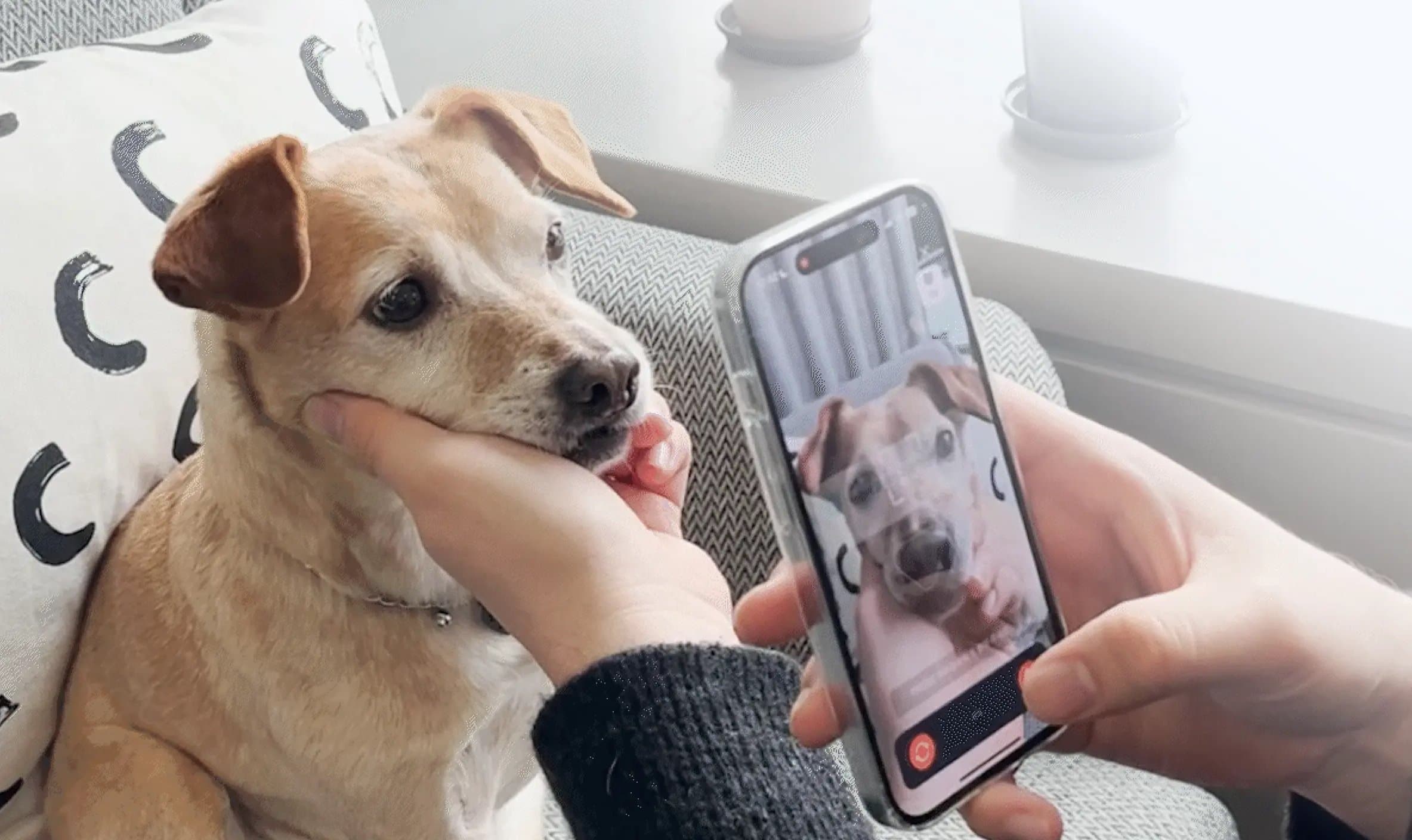
Core Values
- 🚀 Fast integration: No need to know the complex camera API
- 🎯 Real-time guidance: Guides users to the optimal way to capture
- 🎨 Customizable: Adjustable to match your app's design
- 📱 SwiftUI & UIKit support: Usable in any iOS app
Architecture
The PetnowUI module hides the complex state management and ML framework integration logic, exposing only a simple interface to developers.
Core Components
CameraView
A SwiftUI View that displays the camera preview and detection overlay.
Responsibilities:
- Render the camera preview
- Display the detection overlay
- Handle user interaction
Simple usage example:
// Basic usage
CameraView(controller: controller)

// Add a custom overlay
CameraView(controller: controller) {
    Text("Please center the nose")
        .foregroundColor(.white)
        .padding()
        .background(Color.black.opacity(0.7))
        .cornerRadius(8)
}
CameraController
A view model that is an ObservableObject and is injected into CameraView.
Session concepts
The capture process is managed with two kinds of sessions:
Capture Session
- Created by calling the
createCaptureSessionAPI on the server - Pass the created
captureSessionIdtoinitializeCamera()to start capturing - A single Capture Session can contain multiple Detection Sessions
- Used in the Petify Console to track the entire capture process and analyze metrics
Detection Session
- The session from the moment actual detection starts until detection completes or fails
- When the user re-captures, a new Detection Session starts
Note: A new Detection Session starts on re-capture. You can track each session individually in the Petify Console.
State Management
DetectionStatus
Represents the detection result state of the camera frame. It updates roughly every second.
public enum DetectionStatus {
    case noObject                            // No target detected
    case processing                          // Detection in progress
    case detected                            // Detection succeeded
    case failed(reason: DetectionFailureReason)  // Failed (includes reason)
    case finished                            // Capture complete
}
CameraResult
The final capture result.
public enum CameraResult {
    case success(
        fingerprintImages: [URL],  // Fingerprint/nose-print images
        appearanceImages: [URL]    // Appearance images
    )
    case fail                      // Capture failed
}
Data Flow
Key point: When
CameraControllerpublishes state, your custom camera screen uses those state values together withCameraViewto build the UI. When capture completes,CameraResultis delivered via the callback.
Data flow explanation
1. Real-time state updates
CameraControllerpublishes the following state with@Published:detectionStatus:.noObject,.processing,.detected,.failed(reason:),.finishedcurrentDetectionProgress: 0 ~ 100 (Int, detection progress)detectedObjectNormalizedRect: detected region (normalized coords),detectionResult: nose/faceBoundingBoxisSwitchButtonEnabled,isInitialized
- The custom camera screen subscribes to these state values to update the UI.
2. Final result delivery
- When detection completes,
CameraControllersaves the images and creates aCameraResult. CameraResult.successorCameraResult.failis delivered through the callback.
Best Practices
1. ViewModel lifecycle management
// SwiftUI: use @StateObject
@StateObject private var viewModel = CameraController(...)

// Cleanup
.onDisappear {
    viewModel.finalizeCamera()
}
2. Error handling
do {
    try await viewModel.initializeCamera(...)
} catch PetnowUIError.invalidLicense(let error) {
    // Handle license error
} catch PetnowUIError.permissionDenied(let message) {
    // Handle permission error
} catch {
    // Handle other errors
}
3. State observation
// Actions based on a specific state
.onChange(of: viewModel.detectionStatus) { status in
    switch status {
    case .detected:
        playSuccessSound()
    case .failed(let reason):
        showErrorMessage(reason)
    default:
        break
    }
}
Next Steps
Once you understand the structure of the UI module, refer to the following documents:
- Basic Usage - Integrate CameraView
- Customization - Customize the overlay
- Sound Guide - Detailed guide on sound playback
References
- Getting Started - SDK installation
- Troubleshooting - Problem resolution