 Petnow
UI Module Overview
Overview of Petnow Android UI Module's architecture and core components.
What is Petnow UI Module?
The Petnow UI Module is a module that provides a ready-to-use camera UI for capturing pet biometric data. It handles all complex camera setup, detection logic, and image processing, allowing developers to integrate professional biometric recognition features into their apps with just a few lines of code.
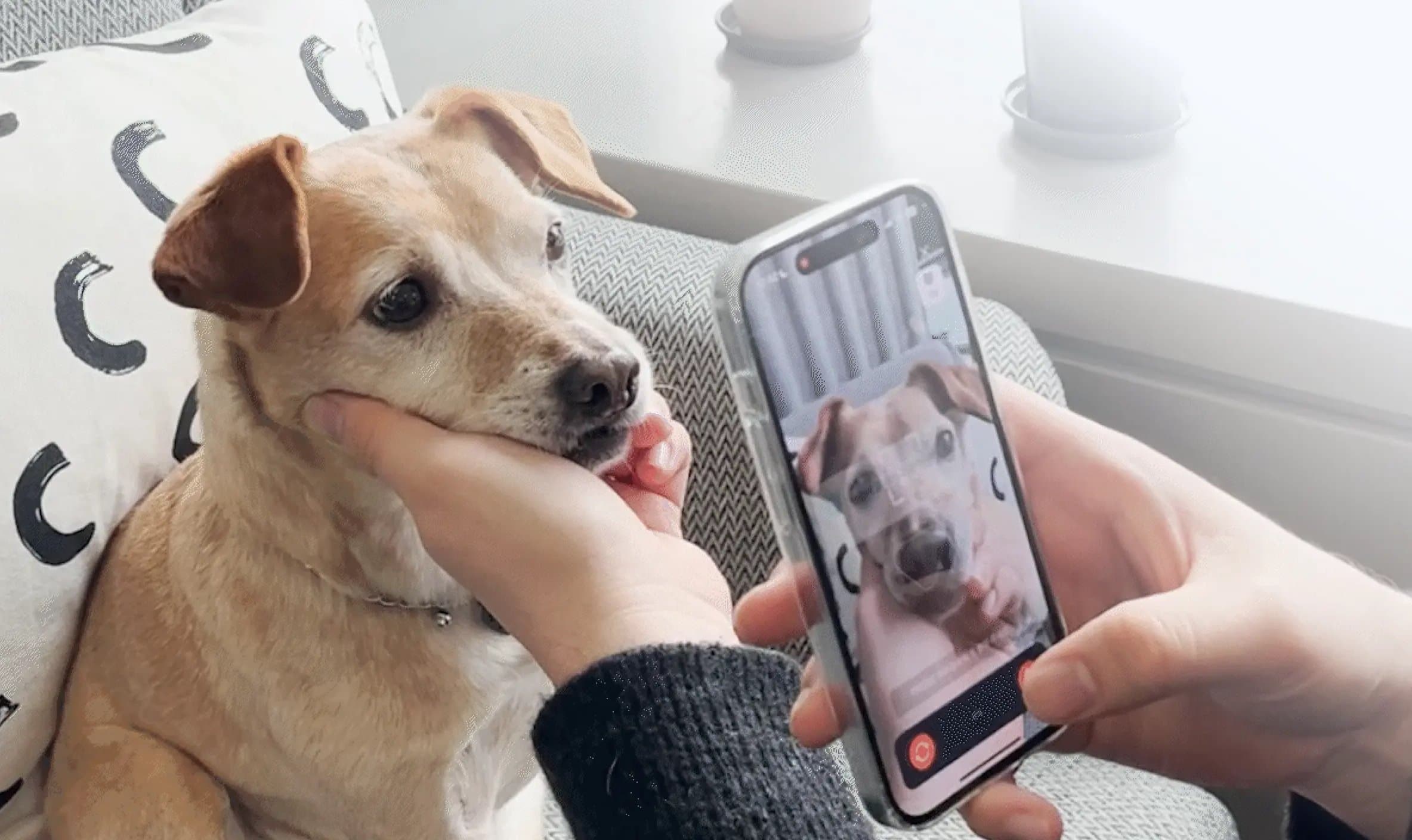
Core Values
- 🚀 Fast Integration: No need to understand complex Camera2 API
- 🎯 Real-time Guidance: Guides users on optimal capture methods
- 🎨 Customizable: Adjustable to match your app's design
- 📱 Fragment-based: Easy integration into existing Android apps
Architecture
The Petnow UI Module hides complex state management and ML framework integration logic, providing developers with a simple interface.
Core Components
PetnowCameraFragment
An Android Fragment that displays camera preview and detection overlay.
Responsibilities:
- Render camera preview
- Display detection overlay
- Handle user interactions
- Automatically request camera permissions
- Internally manage detection state and progress
Simple Usage Example:
import android.content.Context
import io.petnow.ui.PetnowCameraFragment
import io.petnow.callback.PetnowCameraDetectionListener

class CustomCameraFragment : PetnowCameraFragment(), PetnowCameraDetectionListener {

    override fun provideCustomOverlayLayout(): Int? = R.layout.fragment_custom_camera

    override fun onAttach(context: Context) {
        super.onAttach(context)
        setPetnowCameraDetectionListener(this)
    }

    override fun onDetectionStatus(primaryDetectionStatus: PetnowDetectionStatus) {
        // Update detection status
    }

    override fun onDetectionProgress(progress: Int) {
        // Update progress (0-100)
    }

    override fun onDetectionFinished(result: DetectionCaptureResult) {
        // Handle capture completion
    }
}Note: Since
PetnowCameraFragmenthandles all camera logic, developers only need to implement listener methods.
Session Concepts
The capture process is managed by two types of sessions:
Capture Session
- Created by calling Petnow Server API (
createCaptureSession) from your server - The
captureSessionIdreceived from the server is passed to the client and set in Fragment arguments - One Capture Session can contain multiple Detection Sessions
- Used to track the entire capture process and analyze metrics in Petify Console
Detection Session
- A session from when actual detection starts until it completes or fails
- A new Detection Session starts when the user retakes
Passing captureSessionId
import io.petnow.ui.PetnowCameraFragment
import java.util.UUID

class MyCameraFragment : PetnowCameraFragment() {
    companion object {
        fun newInstance(captureSessionId: UUID) = MyCameraFragment().apply {
            arguments = Bundle().apply {
                putString(ARG_CAPTURE_SESSION_ID, captureSessionId.toString())
            }
        }
    }
}

// Usage example
lifecycleScope.launch {
    // Obtain captureSessionId from your server
    // (Server calls Petnow Server API's createCaptureSession)
    val captureSessionId: UUID = yourServerApi.createCaptureSession(
        species = "DOG",
        purpose = "PET_PROFILE_REGISTRATION"
    )

    // Create and navigate to Fragment
    val fragment = MyCameraFragment.newInstance(captureSessionId)
    // ... navigation
}Note: When retaking, a new Detection Session starts. Each session can be tracked individually in Petify Console.
State Management
PetnowDetectionStatus
Represents the detection result status of a camera frame.
import io.petnow.ui.status.PetnowDetectionStatus

enum class PetnowDetectionStatus {
    Error,              // Error occurred
    TooBright,          // Too bright
    TooDark,            // Too dark
    NoObject,           // Object not detected
    TooFarAway,         // Too far away
    TooClose,           // Too close
    NoseNotFound,       // Nose not found
    NotFrontFace,       // Not front-facing
    NotFrontCatFaceHor, // Cat face horizontal alignment needed
    NotFrontCatFaceTop, // Cat face top alignment needed
    NotFrontCatFaceBottom, // Cat face bottom alignment needed
    TooBlurred,         // Too blurred
    ShadowDetected,     // Shadow detected
    GlareDetected,      // Glare detected
    MotionBlurDetected, // Motion blur detected
    DefocusedBlurDetected, // Defocus blur detected
    NotFrontNose,       // Nose not front-facing
    FurDetected,        // Fur detected
    FakeDetected,       // Fake detected
    Detected            // Detection complete
}
DetectionCaptureResult
The final capture result.
import io.petnow.ui.DetectionCaptureResult

sealed class DetectionCaptureResult {
    data class Success(
        val noseImageFiles: List<File>,  // Nose print images
        val faceImageFiles: List<File>   // Face images
    ) : DetectionCaptureResult()

    data object Fail : DetectionCaptureResult()
}
Data Flow
Key Point: By inheriting
PetnowCameraFragmentand implementingPetnowCameraDetectionListener, the Fragment automatically handles all camera logic and delivers only necessary events via callbacks.
Data Flow Description
1. Real-time Status Updates
- Receive the following events through
PetnowCameraDetectionListener:onDetectionStatus(status): Current frame's detection status (PetnowDetectionStatus)onDetectionProgress(progress): Detection progress (0 ~ 100)
- Use these values in custom UI to update the screen in real-time.
2. Final Result Delivery
- When detection completes,
PetnowCameraFragmentsaves images and createsDetectionCaptureResult. - Result is delivered via
onDetectionFinished(result)callback.DetectionCaptureResult.Success- Capture successful (includes image file list)DetectionCaptureResult.Fail- Capture failed
Next Steps
Now that you understand the UI Module structure, refer to the following documentation:
- Basic Usage - Integrate PetnowCameraFragment
- Customization - Customize UI
- Sound Guide - Detailed sound playback guide
Reference
- Getting Started - SDK installation